AI image watermark remover
Upload an image to remove text and logo watermarks, with AI restoring the covered areas naturally

How to remove watermarks from an image
Choose an image with a watermark
Choose the image you want to process. Check the upload area for supported formats and file size limits.
Let AI detect and remove watermarks
No manual brushing is required. Track processing in My creations after the task is submitted.
Preview and download the result
When processing finishes, preview the result in My creations and download the processed image.

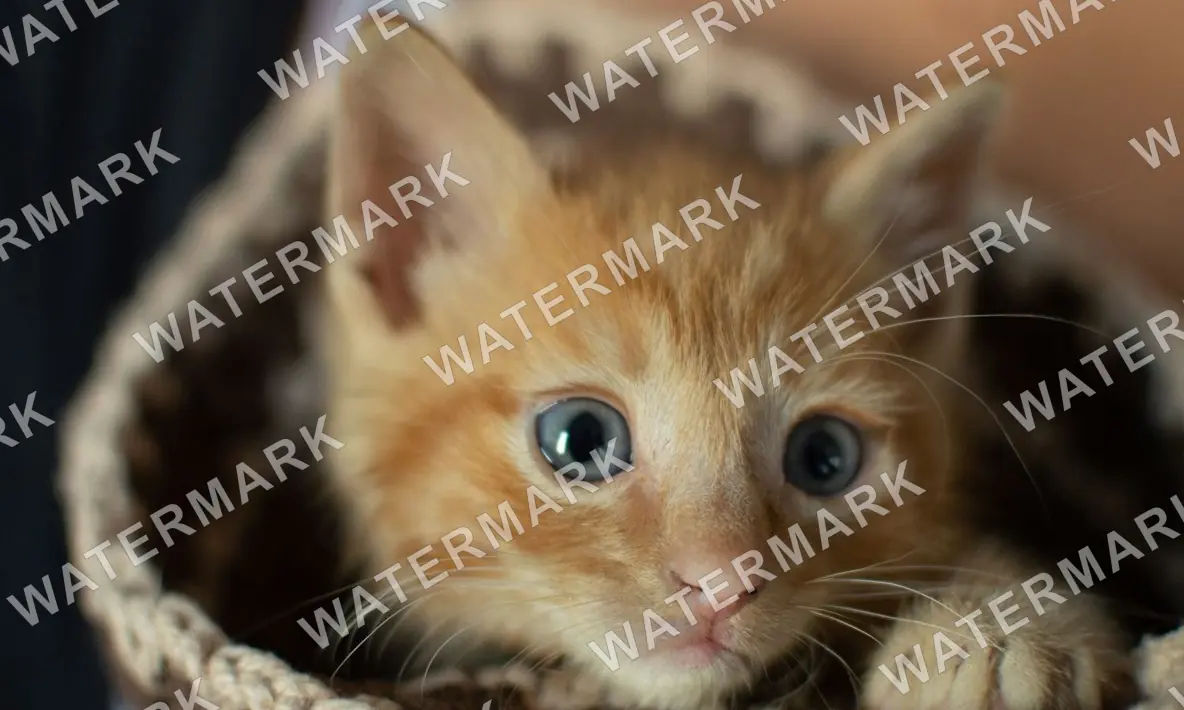
Automatically remove text watermarks across the whole image
When semi-transparent text runs diagonally across the whole image, AI detects and removes it automatically, so you don't have to brush over each spot. Processing starts as soon as you choose an image and usually takes 5 to 20 seconds.

Remove logos even when they cover the subject
When a logo covers a product or person, AI fills in the hidden area based on the surrounding image, with no manual retouching needed.
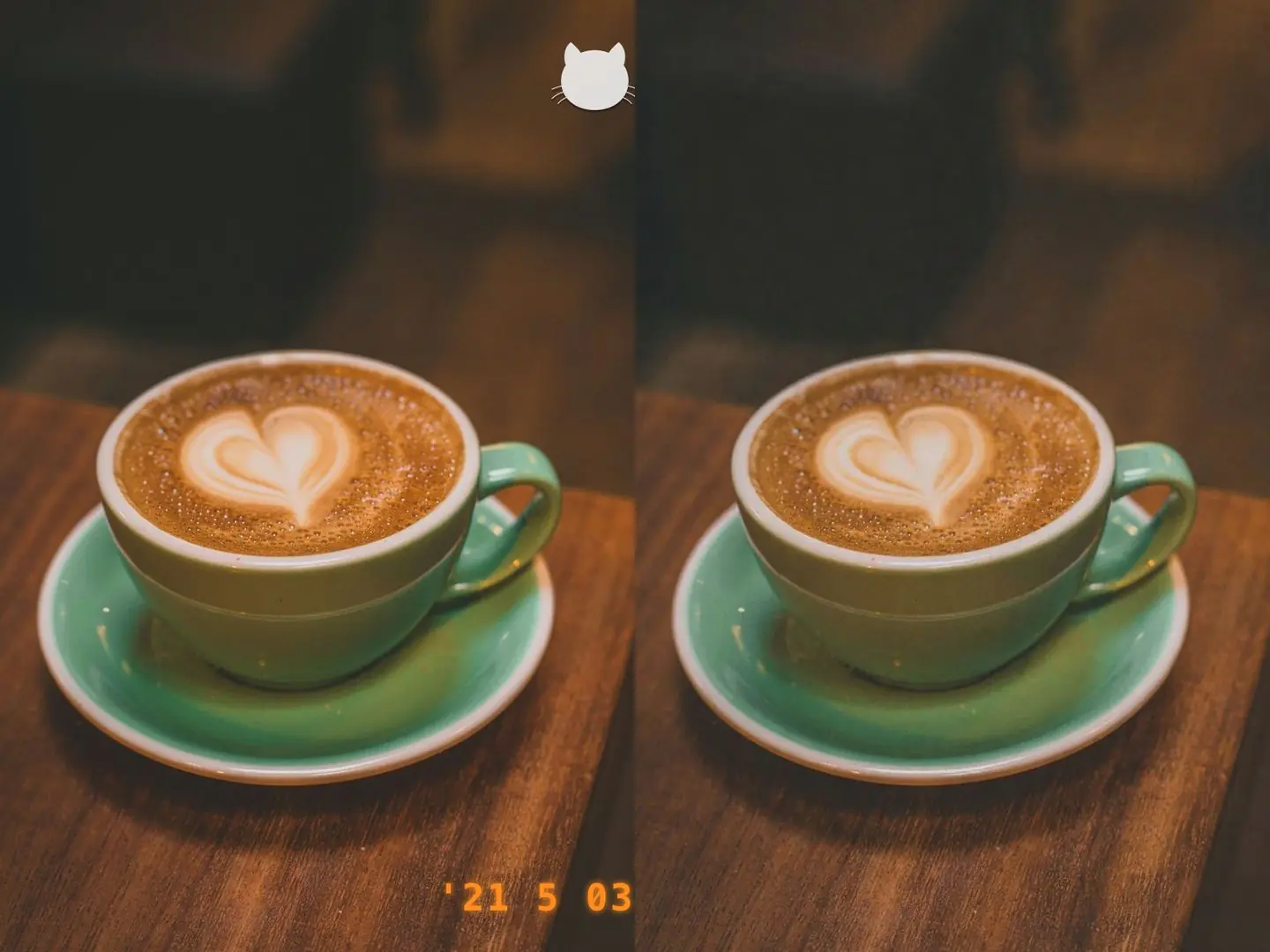
Remove date stamps and corner logos, then keep editing
Remove the date and logo from the corners of a photo in one go. Results are saved in My creations, where you can download them right away or keep refining them with AI image editing.